
Use the chat
Open a Mule file, type a question in the MuleSoftForge AI view, and press Enter (Shift+Enter adds a line). Include open file sends the active editor's content, unsaved edits included, with your message. New chat starts over.
Modes
The first drop-down under the message box picks the mode:
- Ask answers and explains. It can read the project but never changes files. When you ask for a review or a fix, it lists possible fixes, collapsed and unticked, for Agent mode to make.
- Agent reads the project and proposes changes for you to review. If it writes the code in its answer instead, it is asked once, straight away, to turn that code into proposed changes, so the diffs arrive with the answer.
- Plan reads the project and writes a plan: the goal, the changes per file, the risks, and how to test. Draft this plan for review in Agent mode under the answer switches to Agent and asks it to propose those changes.
Buttons under an answer that start with Draft only prepare changes. They appear under Proposed changes with a diff for each file, and nothing is written until you accept them there.
The next box picks the model. Choose a suggestion or type any model id and press Enter. The list price per 1M input and output tokens shows underneath. You can switch models mid-chat and the conversation carries on.
Auto
Auto, at the top of the model list, picks a model for each message so you don't have to:
- The fast model handles Ask-mode questions with little context, such as "what does this flow do?".
- The strong model handles Agent and Plan mode, reviews, fixes, errors, new code and tests, images, long messages, and large attachments.
A step under your message says which model Auto picked and why. If that model fails before answering, with a rate limit, a server error or a timeout, Auto runs the message once on the other model and says so. Errors you need to fix yourself, such as a bad key or an unknown model, are not retried. A message never switches model part-way, so all the steps of one answer come from the same model.
Choose the two models under Preferences > MuleSoftForge AI, below Model. Each provider starts with a sensible pair, such as Claude Haiku and Claude Sonnet for Anthropic. With OpenRouter you can also pick openrouter/auto, which lets OpenRouter choose. The step under each answer then names the model that actually replied.
Give it context
+ Context attaches more to your next message. Attachments show above the message box and clear once sent.
- Files or folders: files are sent with their content, folders as a list of the files inside.
- Selected lines in the editor, or the project's whole file list.
- Problems in the open file or in the project: what Studio's Problems view lists, up to 200 entries.
- Console: a console's text, such as Maven output from a failed build or a running Mule app's log. Long output keeps its last part, where errors usually are.
- Clipboard image: see Screenshots and images.
Send to MuleSoftForge AI does the same from where you are working: the MuleSoftForge button on the toolbar, the right-click menu in editors (including the Configuration XML tab), Package Explorer, Problems and Console, or Cmd/Ctrl+Alt+I. It opens the view with the selected lines, files, problems, or console text attached.
On the Message Flow canvas, select one or more processors, scopes or flows (Shift- or Cmd/Ctrl-click for several), right-click, and choose Send to MuleSoftForge AI. Their XML is attached, for example canvas selection in src/main/mule/employees-api.xml (2 elements: logger "Log request", http:request). A processor inside a selected flow is sent once, with its flow.
When you attach problems with errors, or console output that shows a failure, and the message box is empty, the helper fills in a request to fix them and switches from Ask to Agent mode, so the fix comes back as a change you can review.
Give it standing instructions
Two places, both sent with every message:
AGENTS.mdat the root of the Mule project, for team conventions such as "log with the JSON Logger connector" or "error types use the APP namespace". It is the same file other AI coding tools read. Put anything meant only for Studio under a## Studio AIheading.- Your instructions, in Preferences > MuleSoftForge AI > Instructions, for your own preferences in every project, such as "use British English" or "keep answers short".
Both go below the built-in prompt, after secrets are masked, up to 8,000 characters each; longer text is cut with a note. They can change the built-in guidance (persona, style, Mule conventions). They cannot switch off the rules the helper relies on: masked values stay masked, and changes are still proposals you review. The first message of a chat shows a step such as Following AGENTS.md (1,240 characters) and your instructions (85 characters). Show built-in prompt, under the box, shows what is sent before them.
Secrets stay off the model
Passwords, API keys, tokens and client ids in properties, YAML, Mule XML, URLs, console output and your messages are replaced with «masked-N» before anything is sent to the model. Proposed edits still apply with the real values. .env files, private keys and keystores are never sent.
DataWeave scripts
Right-click in a DataWeave script, such as the script of a Transform Message, for two items under Format:
- Send to MuleSoftForge AI attaches the selected DataWeave, or the whole script when nothing is selected, to your next message. It sends the text as you see it, even before you save.
- Fix with MuleSoftForge AI sends the whole script and the errors and warnings Studio marks in it, straight away. If you selected part of the script, the AI is asked to focus there. When the answer contains a corrected script, click Review diff to see it beside the current one, then Apply to the DataWeave editor to replace the script. Cmd/Ctrl+Z in the DataWeave editor undoes it; save the Mule file to keep it.
Apply refuses if you changed the script, or closed its editor, after choosing Fix. Choose Fix again on the current script.
Screenshots and images
Copy a screenshot or picture, click in the chat view and press Cmd+V (Ctrl+V on Windows). It is attached as pasted image 1 instead of pasting text; text on the clipboard still pastes as text. + Context > Clipboard image does the same. On a Mac, Cmd+Ctrl+Shift+4 takes a screenshot straight to the clipboard; on Windows, use Windows+Shift+S.
- Up to 5 images go with one message. Large screenshots are scaled down to 1568 pixels on the longest side.
- An image is sent only with the message it was pasted into. Later messages and saved chats keep just its name, so it is not paid for again.
- The model must be able to read images. Claude, GPT-4o, GPT-5 and Gemini models can; in Ollama, use a vision model such as llava. If the model refuses the image, the error says so.
Review proposed changes
In Agent mode the AI can list and read the files of the open project and propose edits. Nothing is written until you accept it.
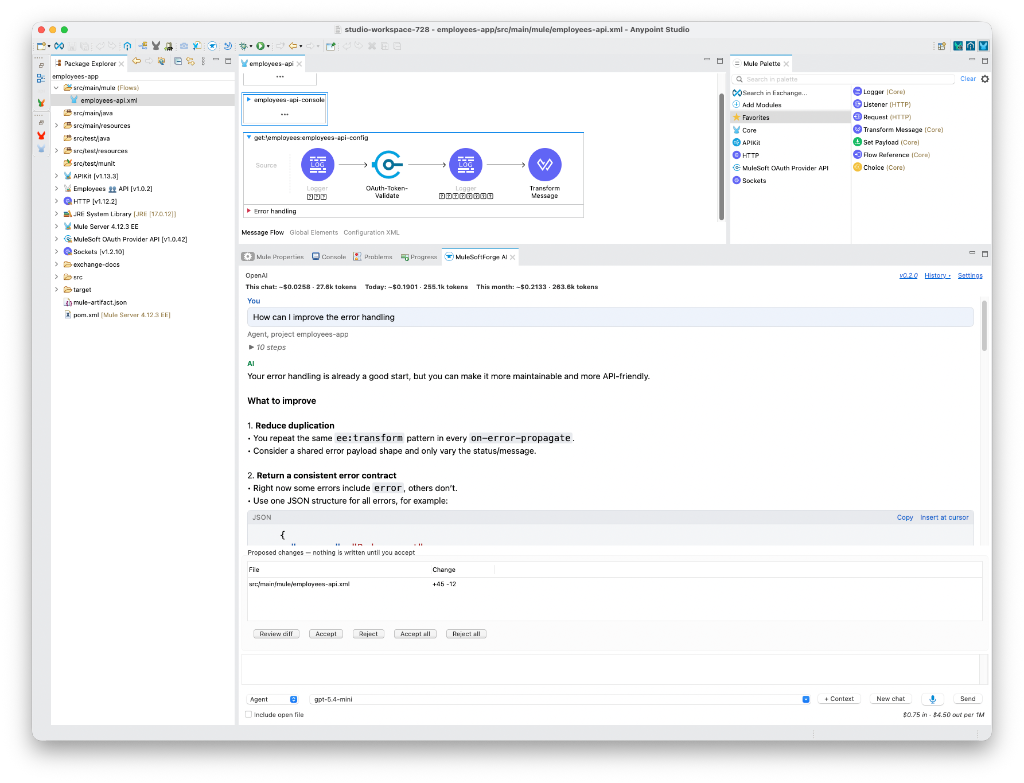
- Proposals appear under Proposed changes. Review diff (or double-click) opens Studio's compare editor: the current file on the left, the proposal on the right.
- Accept writes the file and keeps local history. To undo, right-click the file and choose Replace With > Local History.
- Reject discards the proposal. With your next message the AI is told what you accepted and rejected.
- Accept refuses if the file has unsaved edits or changed on disk after the proposal was made.
- Edits must stay inside the project. Build output and settings folders such as
target/and.settings/are off limits.
Checks before you review
Every proposal to Mule XML, pom.xml or a properties file is checked against the whole project before you see it. If the change would break something, the AI is told and fixes it first. The checks catch:
- XML that is not well-formed, or a prefix such as
db:used without its namespace. - A namespace missing from
xsi:schemaLocation, or a connector with no dependency inpom.xml. - A
config-reforflow-refthat points at a name that does not exist. - A
${property}that no.propertiesor.yamlfile defines. - Error types that do not exist, such as
MULE:NOT_FOUND, or custom errors that reuse a connector's namespace. - Connector operations, attributes and error types that the connector version in your
pom.xmldoes not have, such as<db:selekt>orSFTP:NOT_REAL. - Anything placed after a flow's
<error-handler>, or an error handler inside a sub-flow.
Only problems the proposal adds count, so issues already in your project are not blamed on it. Anything the AI leaves unfixed is shown in a note under its answer. You can also ask, in any mode, "check this project": the AI runs the same checks over every file. They read the files only and do not build or run the app.
Connector lookup
Before the AI writes a connector element, it looks the connector up in the models Studio generates for each connector in your pom.xml. That gives it the configs, operations, sources, parameters, default values and error types of the exact version your project uses, rather than what it remembers from training. You can use this in any mode too, for example "what parameters does sftp:listener take?" or "which error types can db:select raise?".
Studio generates a model once it has resolved a dependency. If you have just added a connector and the AI says no model is available, save pom.xml or refresh the project, then ask again.
Speak instead of typing
The microphone button next to Send starts the operating system's dictation in the message box: macOS Dictation (turn it on in System Settings > Keyboard > Dictation) or Windows voice typing (Windows+H). The plugin never records audio and sends none to the provider; the system turns speech into text, and the text is sent like typing.
Saved chats and cost
Chats save automatically after every answer, in your Studio workspace, never in your Mule projects. File contents, images and API keys are not saved. History ▾ in the view lists recent chats so you can open, rename, export as Markdown, or delete them. Proposals you have not reviewed expire when a chat is closed.
The column to the right of the answers shows the model in use and its list price, and what this chat, today and this month have cost; hover for the Studio session, all time, and the project. To turn saving off or change how long chats are kept, open Preferences > MuleSoftForge AI > Chat history.
If you cancel a request, the AI is told with your next message that it was dropped, so it does not assume the work was done.
See exactly what was sent
Tick Raw in the top bar of the view to record every request and response from your next message on. Each answer then gets a collapsed Raw · N calls section with one entry per model call, tool rounds included. Each entry shows the method, URL, HTTP status, model and time, and expands to the exact request and response bodies.
For OpenRouter, MuleSoft AI Gateway, OpenAI, Anthropic, Gemini, Ollama and other OpenAI-compatible endpoints, the body is exactly what went over the wire, after secrets are masked. Azure OpenAI and Bedrock use their own clients, so for them you see the request and response as the plugin built and read them. Headers are never recorded, so API keys and gateway client secrets stay out of the log.
Raw logs are kept per chat next to the saved chats, so a reopened chat shows its raw sections again. Open raw log, in the section or in History ▾, opens the whole log in Studio's text editor. Untick Raw to hide the sections and stop recording. Raw logs are deleted with their chat.