
Set up a provider
Choose which AI provider to use and enter its API key. Keys are saved in Eclipse secure storage, which on macOS is protected by the Keychain, never in Studio's plain settings files.
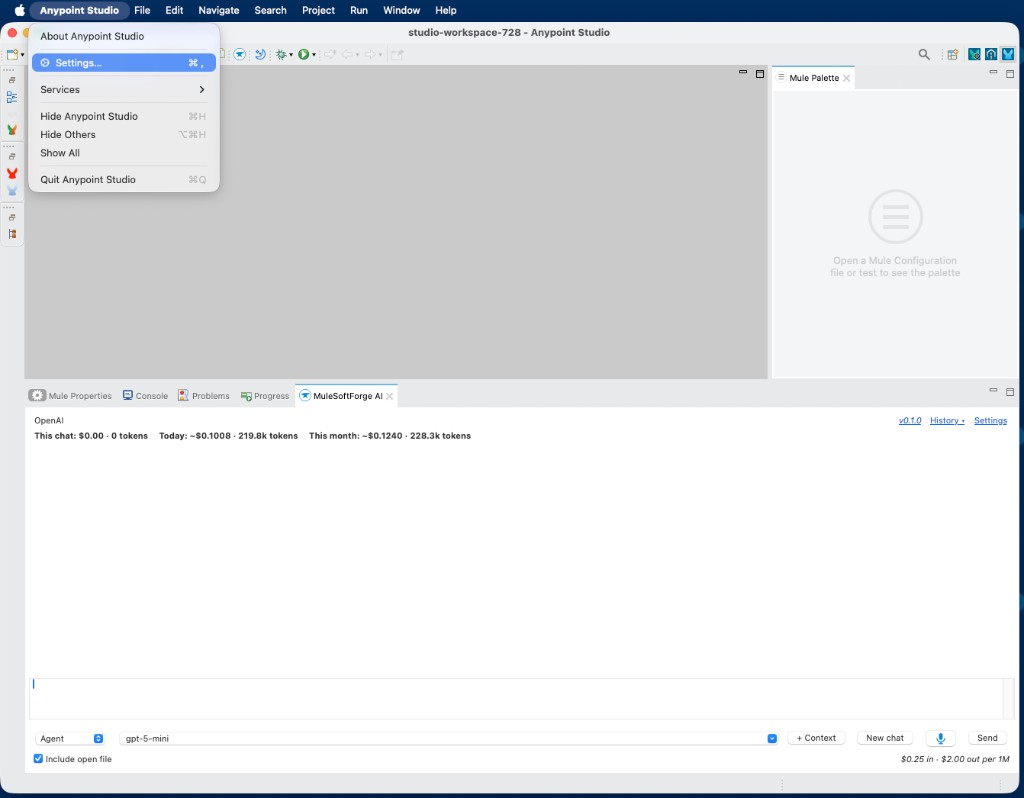
On macOS choose Anypoint Studio > Settings… (Cmd+,). On Windows choose Window > Preferences. You can also click Settings in the MuleSoftForge AI view.
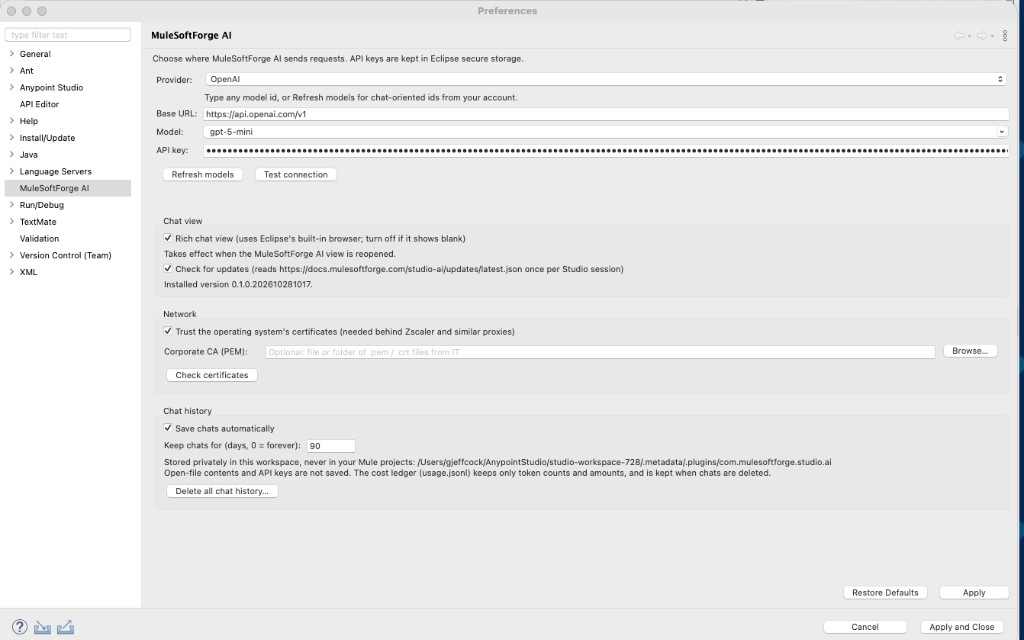
Select MuleSoftForge AI in the list on the left. Pick a Provider; the Base URL fills in for it. Choose a Model (or type any model id; Refresh models lists what your account offers), paste your API key, and click Test connection.
Test connection sends a one-word request to the model. Connected. Model replied: ok means the provider, model and key work. If it fails, the message shows the exact HTTP status and response from the provider. When it works, click Apply and Close.
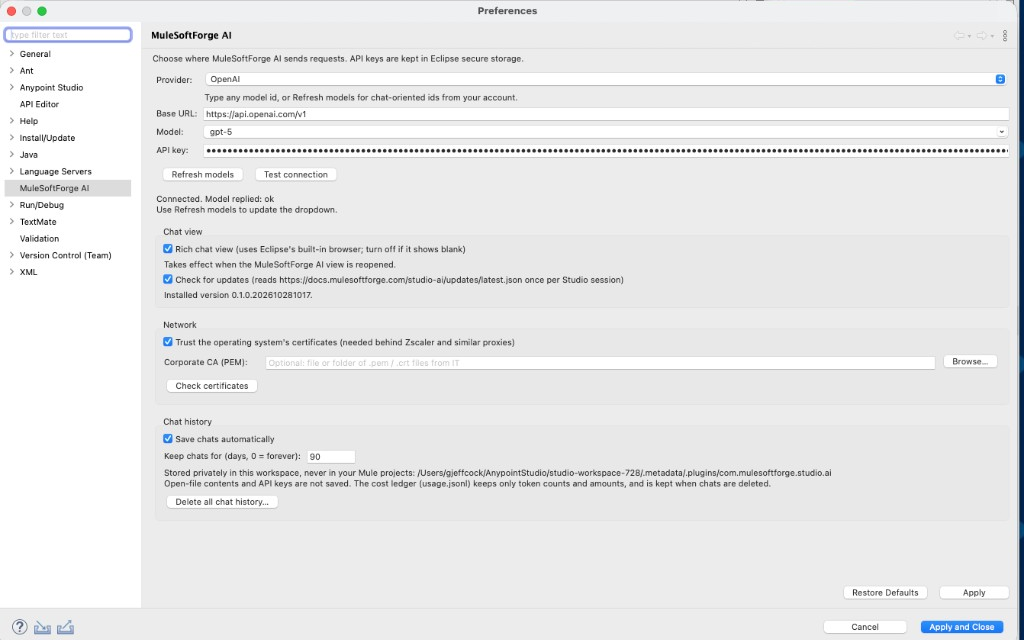
The same page has the Chat view, Network (company certificates) and Chat history settings. Chats are saved in your Studio workspace, never in your Mule projects, and API keys are never written to them.
If saving fails with No password provided, see Troubleshooting.
Next: use the chat.